Wondering which Cricut machine you should buy? I’ve owned and used Cricut machines since the Explore Air 2, and this guide compares the machines Cricut currently sells so you can pick the right one. Cricut provided some of the machines I’ve used in the past, but as always, all opinions are my own.
Last updated: October 14, 2026. Current models, prices and specs below were checked on Cricut’s US comparison chart and product pages on October 14, 2026. Prices change often (and Cricut runs frequent sales and bundles), so always check the current price on Cricut.com before you buy.
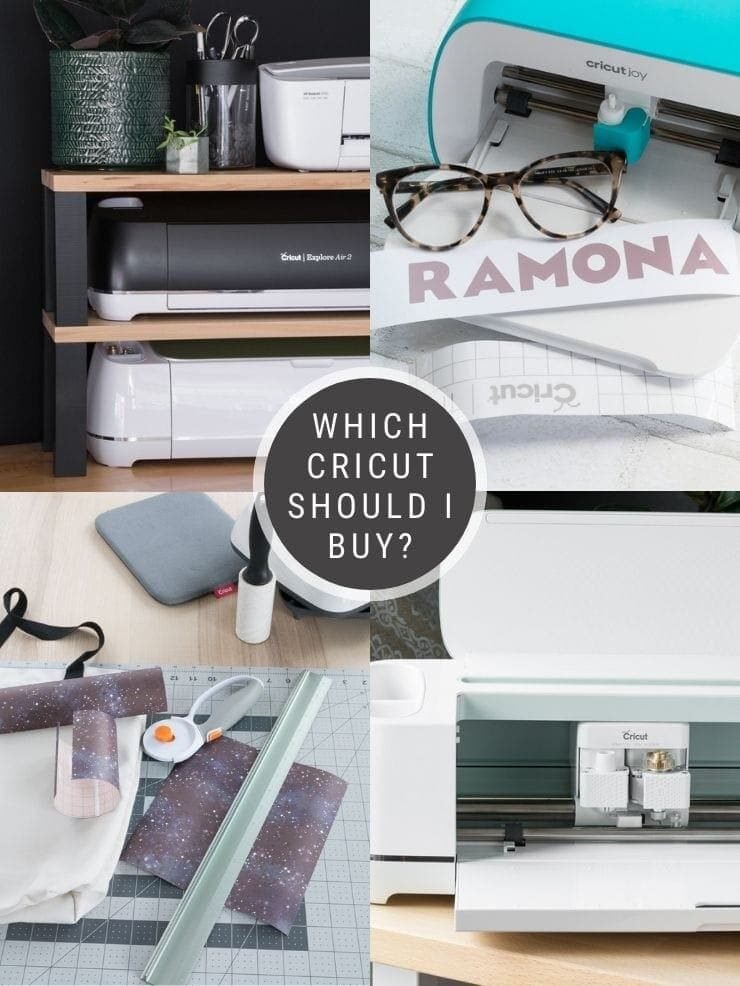
The short answer
- Most people: Cricut Explore 5. It handles the popular projects (vinyl decals, iron-on, cards, stickers), cuts 100+ materials, and does long mat-free cuts with Smart Materials.
- Fabric, wood, leather, or the most tools: Cricut Maker 5. Cricut says it cuts 300+ materials and works with 13 tools.
- Small spaces, labels, and cards: Cricut Joy 2, or the Joy Xtra if you want wider cuts and full-color stickers.
- Very large projects or making in volume: Cricut Venture, Cricut’s wide-format machine.
Cricut’s current machines compared (checked October 14, 2026)
| Machine | List price on Cricut.com (US) | Max cut width | Longest single cut (Smart Materials) | Compatible materials |
|---|---|---|---|---|
| Cricut Joy 2 | $99.00 | 4.5 in | 4 ft | 75+ |
| Cricut Joy Xtra | $179.00 | 8.5 in | 4 ft | 75+ |
| Cricut Explore 5 | $199.00 | 11.7 in | 12 ft | 100+ |
| Cricut Maker 5 | $349.00 | 12 in | 12 ft | 300+ |
| Cricut Venture | Check Cricut.com | 24 in | 12 ft (repeated images up to 75 ft) | 100+ |
Source: cricut.com/en-us/compare and Cricut’s product pages, checked October 14, 2026. Prices are the US list prices shown on the comparison chart that day; sale prices and bundles vary. I’ve left out the Venture’s price because Cricut was showing it as a promotional offer, so check the current price directly. UK readers: see Cricut’s UK comparison chart for UK pricing.
Cricut Joy 2
Cricut describes the Joy 2 as its ultra-compact machine for quick, everyday projects like cards, full-color stickers, decals, and labels. Per Cricut’s product page, it works with 3 tools, cuts 75+ materials, and cuts up to 4.5 inches wide and 4 feet long with Smart Materials (no mat needed). It weighs 2.7 lb, so it really can live in a drawer.
Pick it if: you want something small and inexpensive for labels, cards, and simple decals.
Cricut Joy Xtra
The Joy Xtra is the wider Joy: up to 8.5 inches wide, with up to 4 feet long on Smart Materials, per Cricut’s chart. It’s a good fit for full-color stickers, custom cards, and T-shirts while still being compact. I’ve used the Joy Xtra myself (see my notes further down), and I’m really impressed with what it does for its size.
Pick it if: you want stickers and print then cut in a small machine.
Cricut Explore 5
Cricut pitches the Explore 5 at crafters making popular projects like vinyl decals, stickers, cards, and T-shirts, including making in multiples. Per Cricut, it cuts 100+ materials, works with six tools (including a Deep Cutting Tool sold separately for thicker materials), and does continuous cuts up to 12 feet with Smart Materials.
Pick it if: you want one machine for most popular projects at a mid-range price. This is the machine I’d point most first-time buyers toward.
Cricut Maker 5
The Maker 5 is Cricut’s “ultimate smart cutting machine.” Cricut says it cuts 300+ materials and works with 13 tools, so you can do the popular projects plus things like engraving metal and debossing leather. Per Cricut’s product page, the maximum cut size with Smart Materials is 12 inches by 12 feet, and 11.5 x 11.5 inches on the small mat.
Pick it if: you want to cut fabric, wood, leather, or thicker materials, or you want the widest tool choice. My knife blade wood-cutting tutorial shows the kind of projects the Maker line is made for.
Cricut Venture
The Venture is Cricut’s wide-format professional machine. Per Cricut, it cuts and writes at up to 25.4 inches per second, cuts 100+ materials up to 24 inches wide, does single images up to 12 feet and repeated images up to 75 feet, and works with 7 tools (sold separately). It sits at a 45-degree angle to save space, and it uses its own mats.
Pick it if: you’re making big projects (large paper flowers, wall decals) or batches for a small business.
Cricut Explore 5 vs Joy Xtra
Both handle the popular projects and Smart Materials. The Explore 5 cuts wider (11.7 in vs 8.5 in), much longer (12 ft vs 4 ft with Smart Materials), and works with more materials (100+ vs 75+). The Joy Xtra is much smaller and lighter (6 lb vs 10 lb, per Cricut’s chart). Choose the Joy Xtra for stickers and cards in a small space; choose the Explore 5 for larger, longer cuts and more materials.
Cricut Venture vs Maker 5
The Venture is about size and speed: 24-inch-wide cuts at up to 25.4 inches per second. The Maker 5 is about versatility: 300+ materials and 13 tools, at 12 inches wide. Pick the Venture for volume and big projects, the Maker 5 for material variety.
Older Cricut machines I’ve used (buying secondhand?)
These are my hands-on notes on earlier machines. You may still find them secondhand or on sale, but they aren’t the current lineup, so check Cricut’s site for their specs and support before buying. I’ve removed the old prices from these notes because they’re out of date.
Cricut Explore Air 2 (older model)
First I am going to be covering the Cricut Explore Air 2. This is the first machine I owned, and I also want to highlight that it’s a machine I bought myself. Yes—I was a Cricut user before I ever worked with them in their influencer program!
The Explore Air 2 is one of Cricut’s older machines, but it is absolutely a valid choice. You can use tools for cutting, writing, and scoring on the Explore Air 2.
When working with this machine, it has a 2-ft max material length using the 24″ mat. The max material width is 12 inches. You can make stickers and work with printable iron-on with an Explore Air 2 because it works with print-then-cut features. It is not compatible with Smart Materials.
A lot of people make their decision about which machine to buy based on what the machine’s cutting capabilities are. The Cricut Explore Air 2 doesn’t cut the biggest number of materials, nor can it accommodate the longest range of materials.
But in my opinion, it hits a sweet spot of cutting the materials most people likely want to cut at a great price point. The Cricut Explore Air can cut over 100 materials using it’s premium fine-point blade.
Some highlights you’ll likely be interested in are vinyl, iron-on, card stock, paper, bonded fabric, adhesive foil, canvas, craft foam, paper-thin faux leather, infusible ink transfer sheets, kraft board, and much more. Cricut’s website has a full list of materials the Cricut Explore Air 2 can cut.
The Explore Air 2 also has two other cutting modes: fast mode and precision mode. Fast mode cuts up to double the speed of a normal cut, but it isn’t available for all materials. Precision mode is best for really intricate cuts. I honestly don’t really use either, but it’s good to know they are there.
Looking for more Cricut? Check out my detailed review of the EasyPress 2, my post about the EasyPress Mini, and my tutorial all about using the Cricut Mug Press!
You can use four different tools on the Cricut Explore Air 2. In addition to the premium fine-point blade used for cutting, you can also use a scoring stylus, a deep-point blade, and a bonded-fabric blade.
The scoring stylus can be used to create folds for things like cards, which the deep-point blade is used for thicker materials on the Explore Air 2.
Writing is also simple on the Explore Air 2. You simply put the special pen into one of the tool holders and let the machine write for you. You can write in Design Space using a script font and then have the machine write it all out.
This is great for things like beautiful decorative writing with a lot of flourishes…or if you just have bad handwriting. 🙂 The pen can also draw intricate shapes for you.
A newer addition to the Explore Air 2 suite of capabilities is foil crafting. The new foil transfer tool is compatible with the Air 2 (and the Maker) and helps you embellish invitations, gift boxes, cards, and more. I haven’t tried this capability yet, but I’m keen to get my hands on the foil transfer kit soon!
Cricut Explore 3 (older model)
Next up, the Cricut Explore 3! I have had a chance to work with mine quite a bit. You might see the “3” in this machine’s name and think that it is simply a better version of the Cricut Explore Air 2. And, honestly—it pretty much is. But that doesn’t mean you need to get it.
Cricut is still promoting both of these machines and has them available for purchase on their website. And the Cricut Explore Air 2 remains cheaper than the Explore 3. So what do you get for ponying up a bit of extra money?
The Explore 3 cuts 100+ materials and works with tools for cutting, writing, and scoring. It also worked with print-then-cut. Sounds like the Explore Air 2 so far but more expensive, right? So what’s different?
Well, it works with Smart Materials, meaning it can cut up to 12 feet instead of 2 feet. It also operates faster and (in my experience) smoother than the Explore Air 2.
I’m not going to go too much into the materials this machine can cut and the tools it uses, because it really mirrors the Explore Air 2’s capabilities. The major difference on the Cricut Explore 2 is that it can cut without a mat is you’re using Smart Materials.
And it can do looooong cuts with some of those Smart Materials as well: up to 12 feet for a single cut.
Not needing a mat is a huge bonus, in my opinion. Just loading the material and pressing go is a time saver. Plus you don’t need to continue buying mats and trying to use them within the last inch of their life when they are losing their stick.
The Cricut Explore 3 can also cut faster. It is 2x faster (when cutting Smart Materials) compared to fast mode on the Explore Air 2. One thing I notice when cutting—regardless of whether I’m using Smart Materials or materials on a mat—is that the Explore 3 is smoother and quieter, too.
So, is all of this worth it to you? It depends on what you want to make with your machine! If the idea of using Smart Materials and no mat is appealing to you, the Explore 3 is worth the extra money. And don’t worry—you still have the ability to cut using a mat with other materials.
Long or repeated cuts could also be something that you’d like doing. Say you want to cut out a TON of smaller decals. You can just load a roll of Smart Vinyl and let the machine do its thing. No more swapping out mats and starting the cut again.
For more on this machine, see My Guide to Using the Cricut Explore 3!
Cutting on the Cricut Explore 3 using a mat DIY confetti cut out on a Cricut Explore 3 using a mat
Cricut Maker (older model)
The third machine I’ll profile is the Cricut Maker. It’s a real powerhouse—both in DIY capabilities and in weight. Although it’s the same size as the Cricut Explore Air 2 and really looks pretty much the same, it’s definitely not the same on the inside!
This machine is pretty incredible and is for the very serious crafters among us. It cuts far more materials than the Explore machines.
The Maker also works with 11+ tools for cutting, writing, scoring, debossing, and engraving. However, it has the same material max as the Explore Air 2: 2-ft max material length and 12-inch max material width. It also has print-then-cut functionality.
The real selling point for the Maker is that it can cut A LOT of different materials. It cuts all of the stuff the Explore Air 2 can cut, but it also uses specialty blades to cut things like wood veneer, bass/balsa wood, leather, thicker chipboard, thick felt, corrugated cardboard, and more. Like the Air 2, it writes, scores, and is compatible with the foil transfer kit.
So let’s talk about the differences. Overall, this machine is just more powerful. It has commercial-grade technology (probably why it’s so much heavier) and an adaptive tool system to control the blades and cut pressure, for a lot more cutting force. The basic cutting is also done using the premium fine-point blade used on the Explore Air 2.
The Maker has tons of tools for cutting, writing, scoring, debossing, engraving, and more. In addition to the fine-point blade, the Maker has a fantastic knife blade. The knife blade really takes the Explore Air 2’s deep point blade to another level, cutting up to 2.4mm (3/32”) thick materials.
You use the knife blade to cut basswood and balsa wood, among other things. I have a full tutorial on how to use the knife blade to cut wood on the Maker, as well as a post about cutting chipboard with it and making a leather hair bow with it.
The Maker is also great for crafters who are into sewing. I haven’t used the sewing capabilities too much yet, but I did use my rotary blade and Maker to make some masks at home in the early days of the pandemic.
In addition to the rotary blade making cuts super precise, the Maker can mark patterns on fabric. I suck at cutting straight lines and even cuts. And you can get tools for scoring, perforating, debossing, engraving, and creating wavy lines. I tested the debossing and engraving blades, and they were cool.
Cricut Maker 3 (older model)
The fourth machine we’ll profile is the Maker 3. This is the only machine I have never owned or personally tested. But it rolled out during the same campaign that Cricut rolled out the Explore 3 in, so I am pretty familiar with its features.
Essentially the Maker 3 does everything that the original Maker machine can do, but it has the same upgrades the Explore 3 has—
- It can cut without a cutting mat if you’re using Smart Materials
- Cut the length increases dramatically if you’re using Smart Materials—up to 12 feet
- It is compatible with the roll holder (sold separately) for large/long projects
- It cuts 2x faster than the Cricut Maker
So if you want access to all of the quick swap tools, the knife blade, and you want to extra perks of longer, faster cuts on Smart Materials, the Cricut Maker 3 may be a good choice!
Cricut Joy (older model)
The next machine is the tiny but mighty Cricut Joy! This is such a cool little machine that really packs a lot of features into something that can be neatly stored in a drawer—a huge plus for those of us without a dedicated craft room!
This would make an amazing holiday gift for someone who wants to get their feet wet with Cricut. As a bonus, it’s the machine with the lowest price-point while still packing a bunch of different capabilities and features.
You can cut and write on this machine, and it is not compatible with print-then-cut. It also has a cool card-making feature.
Ok, so 50 materials might not seem like a ton coming off the heels of the 300+ materials that the Maker can cut…but here’s the thing. The 50 materials that the Cricut Joy can cut probably include many—if not all—of the materials you’ll want to cut if you’re a novice or intermediate crafter.
It uses a fine-point precision blade, much like the Explore Air 2 and the Maker, to cut tons of intricate shapes. It can cut vinyl, iron-on, card stock, label paper, construction paper cardboard, Infusible Ink transfer sheets, papers, and more (see the full list of materials the Cricut Joy can cut here).
A great feature the Cricut Joy has is mat-less cutting. This was Cricut’s first mat-less machine. You don’t need to use an adhesive mat if you’re using Smart Materials specifically designed for Cricut Joy.
If you want to use regular materials or scraps, that’s fine too—you’ll just need to use a little Cricut Joy mat. I have cut things both ways on the Joy, and both are easy.
It cuts a much narrower width than the bigger machines, but with Smart Materials you can do long cuts without a mat. I really love this feature.
Like other machines, the Joy can write for you. But keep in mind that the pens are a different size, so you can’t use the Explore Air 2/Maker pens on the Joy. Everything is scaled down for the little Joy.
But the writing feature is really great on the Joy, especially since you can use ready-made label paper! I actually used the label paper to make some return address labels—I just had the Joy write out my name and address and then cut the labels out.
Another cool thing about the Cricut Joy is that it comes with a mat specifically designed for making greeting cards. The card cutting works by cutting a design into a card stock sleeve. Then you insert a different-colored card on the inside of the sleeve, making the design pop.
When the 2020 quarantine first started, R and I made a bunch of cards for her to draw in and send to friends. Helped us kill a few hours of being trapped inside 🙂 I have since used this for a couple different occasions, both designing my own cards and using the readymade projects in Design Space.
For more on this machine, see my post What You Can Make With a Cricut Joy!
Cricut Joy Xtra (older model)
The Cricut Joy Xtra is an upgraded version of the original Cricut Joy. It can do everything the Joy can do, but it has a larger cutting size, allowing for shapes up to 8.5 inches wide. And you can use print-then-cut on the Joy Xtra!
It can cut the same materials the Joy can cut. All of the stuff you probably want to cut. It writes, draws, and foils.
The Joy Xtra can cut all of the same things that the Joy can cut—vinyl, iron-on, cardstock, paper, labels, etc. On a mat it takes roughly letter-size sheets.
And it is compatible with Smart Materials (sized for the Joy Xtra). When using Joy Xtra Smart Materials, you can cut up to 8.5 inches wide and 4 feet long. And, of course, when using the Smart Materials, you don’t need a mat.
So if you have a Joy and a Joy Xtra, you can’t use the Smart Materials on both. But if you choose the Joy Xtra, you get a wider cut range. Meaning you can cut larger designs, or more smaller designs at once.
The Joy Xtra is also marketed heavily for its ability to work with print-then-cut functionality. And you know what that means…stickers! You can make stickers! And, of course, you can use the print-then-cut feature for printable iron-on and vinyl.
So that means you can do a ton of stuff on the Joy Xtra that you can’t do on the original Joy. Honestly, I am really impressed with the functionality vs. price for the Joy Xtra. It’s a fantastic machine for both entry-level and experienced crafters alike!
Cricut Venture (older model)
The Cricut Venture is Cricut’s foray into large-format cutting. It provides commercial speed and impressive precision while also adhering to Cricut’s promise of providing sleek, user-friendly machines.
One thing you’ll notice immediately when looking at the Venture is that it does not lay flat. That means you don’t load it from the front. Instead, and because it’s a larger machine, it sits at a 45-degree angle. That helps to conserve room by negating the need for space behind and in front of the machine when working with mats.
It can cut over 100 different types of materials. A few examples are vinyl, iron-on, paper, Infusible Ink, leather, poster board, and bonded fabric. And I used it to make some really cool large-format coloring pages for my daughter!
There are two main selling points to the Venture: cutting speed and its size. Let’s talk about both. The Venture cuts at speeds of up to 25 inches per second, so it is FAST. If you are running a small business and want to cut a bunch of the same design quickly, the Venture is a great choice.
When using Smart Materials, the Cricut Venture can cut up to 24 inches wide—twice the width of other Cricut machines. It can cut single images up to 12 feet long and repeated/separate images up to 75 feet long.
And you can also cut with a mat on this machine. The Venture mats are performance machine mats that are made of a more durable material. You should know that other Cricut machine mates will not fit in the Venture and will crack and warp under the pressure of the pinch rollers.
For a full review of this machine, see my post What is the Cricut Venture?
Which Cricut should I buy? FAQ
What is the best Cricut for beginners?
For most beginners, the Explore 5 is the best all-rounder. If budget or space is tight, the Joy 2 is the most affordable machine on Cricut’s chart ($99.00 when I checked on October 14, 2026).
Which Cricut cuts wood and fabric?
The Maker 5. Cricut says it cuts 300+ materials, including fabric, and works with 13 tools.
Which Cricut is best for stickers?
The Joy Xtra and Explore 5 are both pitched by Cricut for full-color sticker projects. The Joy Xtra is the compact option; the Explore 5 cuts wider and longer.
Do I need a subscription?
No. Cricut says its Design Space app is free to download. Some features and digital content need a paid Cricut Access subscription or an à la carte purchase.
My verdict
Everyone’s needs are different, but here’s how I’d choose: start with the Explore 5 unless you know you want fabric, wood, or leather (Maker 5), need something tiny (Joy 2 or Joy Xtra), or are making big projects in volume (Venture). Whatever you pick, check the current price on Cricut.com, because sales and bundles change often.